


SHADERS
The shaders included in this are created through ShaderForge and we
support it’s use. Each object has it’s own MeshRenderer so you can limit
the use of the Complex shader for only the specific voxels that need it.
Vertex Color Normal
Color, Illumination, and Specular
Vertex Color with Full Alpha
Color, Transparency, Illumination, and Specular
Custom
You may choose a custom vertex color shader if you choose. Use the
other shaders as examples.
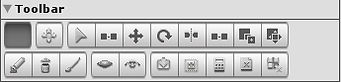

Misc Toolbar
No Tool
This will clear all selected voxels and tools from use.
Move Pivot
This tool will allow you to move the pivot point of the selected part.


Selection Toolbar
Select Voxel
This tool will allow you to select individual and/or a group of voxels by
dragging out a voxel area over the desired voxels. Use the control key to
remove a voxel from your selection.
Move Selected Voxels
This tool will move all selected voxels to a new position by adjusting the
transform control.
Rotate Selected Voxels
This tool will rotate all selected voxels to a new position by adjusting the
rotation control.
Mirror Selected Voxels
This tool will mirror your selected voxels based on the axes selected in
the selection sub menu.
Duplicate Selected Voxels
This tool will duplicate all selected voxels and immediately select them.
Promote Selected Voxels to Part
This tool will create a new submesh and promote the selected voxels to
the object. This is useful to split complex meshes into more useful
submeshes.
Move Selected Voxels to Selected Part [ Part Name ]
This tool will move the selected voxels to the highlighted submesh in the
parts section of the component.


Voxel Toolbar
Add Voxel
This tool will allow you to create a new voxel at the location of the cursor
or area.
Remove Voxel
This tool will allow you to delete a voxel or area highlighted by the cursor.
Paint Voxel
This tool will allow you to paint the currently active color onto any
highlighted voxel or area. You can also copy the currently highlighted
voxel's color by holding down the control key and clicking the voxel. Colors
can have vertex, transparency, illumination, and specular values. These
can be adjusted by the color picker and the sliders provided. You may
disable/enable a specific attribute of the color by using the check boxes.


Face Toolbar
Hide Face
This tool will allow you to hide specific faces of a voxel or area. The
highlighted face of the cursor at the end of a drag will determine which
faces will be hidden for the area. This is useful for complex objects that
intersect and you wish to remove faces that will never be seen.
Show Face
This tool will allow you to show specific faces of a voxel or area. The
highlighted face of the cursor at the end of a drag will determine which
faces will be hidden for the area.


Mesh Toolbar
Save Mesh
This tool will immediately save the mesh to a unity asset object, which can
then be used to create a prefab. Changing the names of submeshes will
break your prefabs, but can be easily remedied by using the new submesh
created.
Create Game Object
This tool will immediately create a new game object with the same
hierarchy as your object, but only include the meshes that were saved by
adding a Mesh Filter and Renderer component to the game object.
Recalculate Mesh
This tool will recalculate the entire mesh from ground zero. From time to
time there are bugs that may occur and your mesh might not render
properly. To clear these artifacts, you can recalculate the whole mesh
from scratch. This is useful when something doesn’t look right. You
shouldn’t need to use this,but it’s there to provide a work around to
undiscovered bugs.
Clear Mesh
This tool will wipe the entire object clean. Be careful when you use this.
You will be prompted to confirm when you do this.
Clear Hidden Objects
This tool will remove any hidden objects left over by some of the tools.
Like the Recalculate Mesh tool, this shouldn’t be needed but as not every
case has been discovered it’s here to provide a way to clean up a mesh
when artifacts are left behind.


Parts Hierarchy
This section of the component will display the hierarchy of the object and
mimics the hierarchy view with some extra information provided. To the
right will display how many voxels you currently have selected. A green
highlighted row is your currently selected sub object. A cyan highlight is
the current object the cursor is touching.
[Name] x [ n ] x [ m ]
This displays the name of the object, the number of voxels, and the
number of vertices of the mesh. The currently selected sub object will be
highlighted. You change the name of the object by changing the object
itself in the inspector, via the hierarchy view.
Toggle Wireframe
This will show/hide the wireframe mesh of the sub object. Using the Shift
key will allow you to toggle all children as well.
Toggle Mesh
This will show/hide the mesh of the sub object. Using the Shift key will
allow you to toggle all children as well.
Delete Child Object
This deletes the child object. You will be prompted to confirm when you
do this.
Add Child Object
This adds a new child object to the sub object.